Asset Approvals – Due List
Last Updated: January 9, 2026
Document Version: 1.0
Prepared for: Emgage HRMS Implementation Team
The Asset Approvals – Due List tab provides a centralized view of assets with important upcoming or overdue dates, such as return dates, renewal dates, or payment dates.
This screen helps administrators proactively manage asset obligations and avoid compliance or financial issues.
Navigation Path
Asset → Asset Approvals → Due List
- When Asset Approvals is selected from the left sidebar, the All Requests tab opens by default.
- Clicking on Due List opens the Due List tab.
Available Tabs (Overview Only)
The Asset Approvals module contains the following tabs:
- All Requests
- Request Approval
- Return Requests
- Return Overdue
- Due List
This document covers only the Due List tab.
Due List – Overview
The Due List tab displays assets that have due-related alerts, such as:
- Return date due or overdue
- Renewal date due or overdue
- Next payment date due or overdue
Each record highlights the due type and the number of days overdue to support timely action.
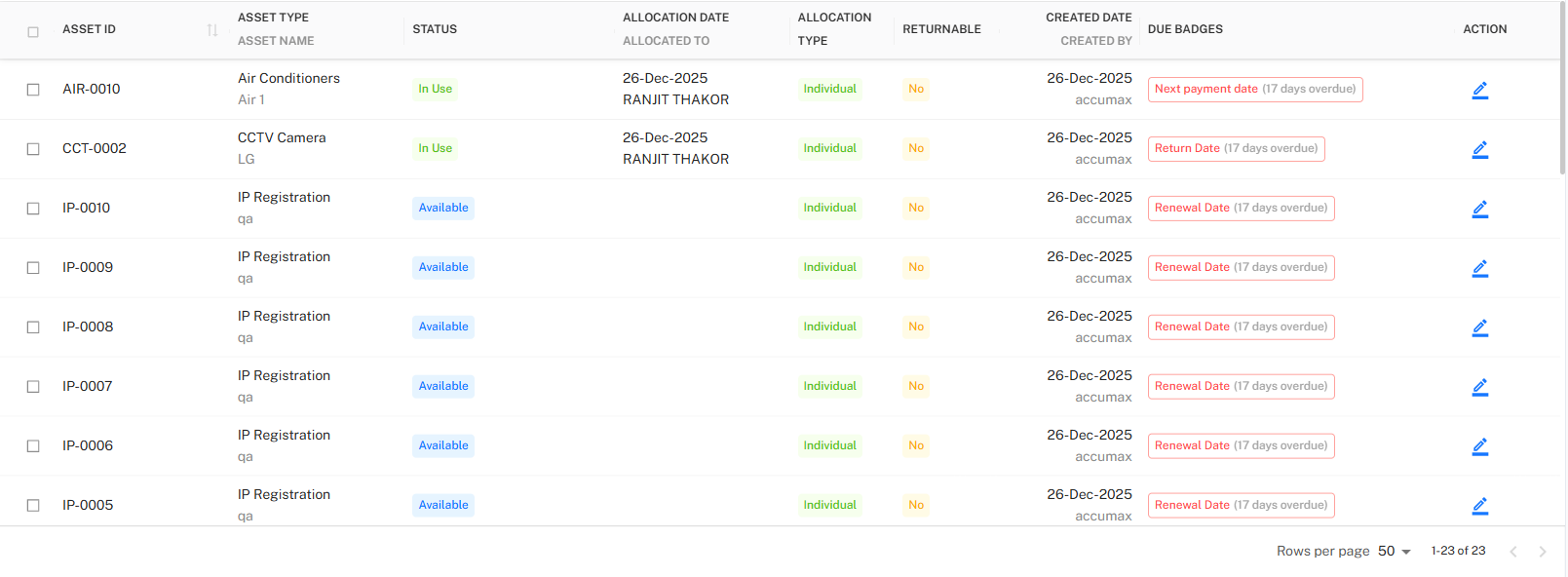
Due List Table
The Due List table provides a structured view of assets with due alerts.
Table Columns
| Column Name | Description |
|---|---|
| Select Checkbox | Allows selection of one or more assets for bulk updates. |
| Asset ID | Unique identifier of the asset. |
| Asset Type / Asset Name | Category and name of the asset. |
| Status | Current asset status (e.g., In Use, Available). |
| Allocation Date / Allocated To | Allocation date and employee to whom the asset is assigned. |
| Allocation Type | Indicates whether the asset is Individual or Shared. |
| Returnable | Indicates whether the asset is returnable (Yes / No). |
| Created Date | Asset creation date along with creator name. |
| Due Badges | Displays due type and overdue duration (e.g., Return Date – 17 days overdue). |
| Action | Edit icon to update due-related details for the selected asset. |
Due Badge Indicators
The Due Badges column visually highlights the type of due alert:
| Badge Type | Description |
|---|---|
| Return Date | Asset return date is due or overdue |
| Renewal Date | Asset renewal date is due or overdue |
| Next Payment Date | Payment date related to asset is due or overdue |
Each badge also displays the number of overdue days for quick assessment.
Row Selection & Bulk Change
- Users can select one or multiple rows using checkboxes.
- After selection, bulk fields become available:
- Field Name
- New Date
- Clicking Change updates the selected field for all chosen rows.
- Clear Selection option is available to deselect rows.
Update Details Action
Each row contains an Action (✏️ Edit) icon.
- Clicking the Action icon opens the Update Details popup.
- The popup updates details only for the selected row.
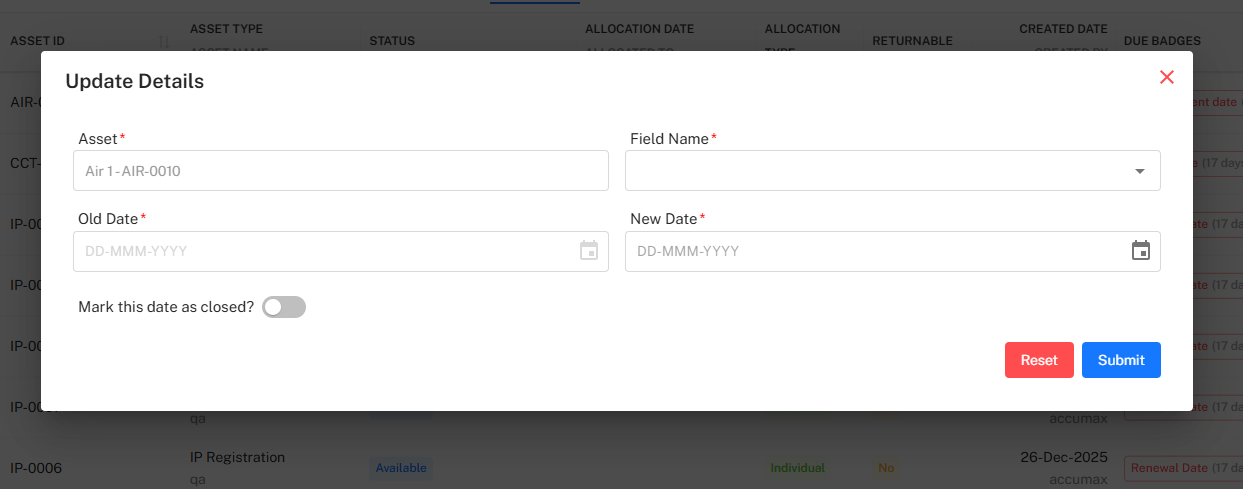
Update Details – Mandatory Fields
| Field | Description |
|---|---|
| Asset | Auto-populated asset identifier (read-only). |
| Field Name | Select the due field to update (Return Date / Renewal Date / Payment Date). |
| Old Date | Existing recorded date. |
| New Date | Updated date to be applied. |
Optional Field
| Field | Description |
|---|---|
| Mark this date as closed? | Marks the selected due item as closed once updated. |
Actions
- Reset – Clears all entered values
- Submit – Saves changes for the selected asset
Toolbar Controls
Located at the top-right corner of the Due List table.

Available Actions
- Filter – Open advanced filter panel
Filter Panel
The Filter panel allows narrowing down assets based on multiple attributes.
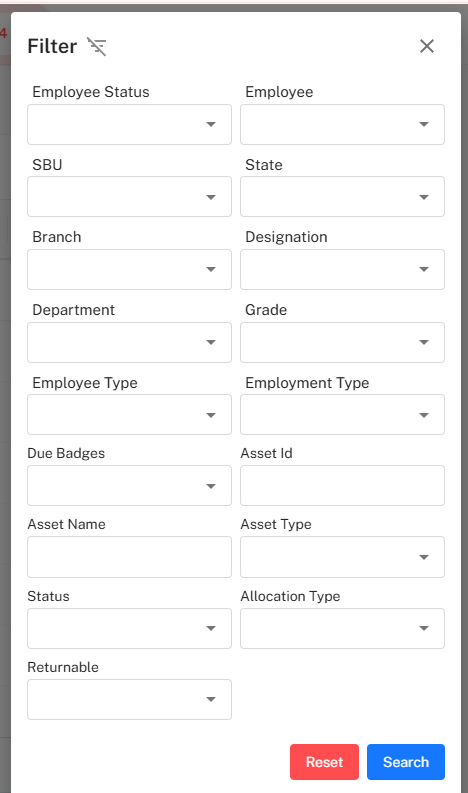
Available Filter Fields
| Category | Fields |
|---|---|
| Employee Details | Employee, Employee Status |
| Organization | SBU, State, Branch, Department |
| Job Details | Designation, Grade |
| Employment | Employee Type, Employment Type |
| Asset Details | Asset ID, Asset Name, Asset Type |
| Allocation | Allocation Type |
| Status | Asset status |
| Returnable | Returnable flag |
| Due Badges | Due badge type |
Filter Actions
- Search – Apply selected filters
- Reset – Clear all filters
Key Behaviors
- Only assets with due-related alerts appear in this tab.
- Due badges are calculated automatically based on configured dates.
- Update Details popup updates only the selected row.
- Bulk date updates are supported using row selection.
- Pagination and row count controls are available at the bottom of the table.
Best Practices
- Review the Due List daily to avoid missed deadlines.
- Prioritize assets with higher overdue duration.
- Use bulk update cautiously to avoid incorrect date changes.
- Mark due items as closed once resolved.
- Export due data regularly for audit and compliance tracking.